
To download a shared Anki deck on iPhone, open the official AnkiMobile app and tap Add/Export, then Shared Deck List. AnkiWeb opens in Safari: tap a deck, tap Download, then tap the file in Safari’s Downloads and choose Open in Anki if prompted. For an .apkg you already have, tap the file, open the Share sheet if needed, and choose AnkiMobile. If the deck already lives in Anki desktop, Anki documents AnkiWeb sync as the easiest route. Smort is a separate option when voice or text recall matters more than exact Anki compatibility.
Publisher disclosure: Smort publishes this guide and is Method 2. We recommend AnkiMobile when exact scheduling, templates, media, add-ons, and AnkiWeb continuity matter. Smort requires iOS 26 or later and is currently in private beta, not a generally available alternative.
Know which Anki file you have
The filename determines whether you are adding one deck or replacing an entire Anki collection. Keep your original collection and export until the iPhone copy is verified.
- .apkg is a deck package
- It normally contains one deck and any child decks. Anki adds it to the current collection. Smort accepts individual .apkg deck packages.
- .colpkg is a collection package
- It contains the full Anki collection. Importing one into AnkiMobile replaces the collection already on that device. Smort does not import .colpkg files.
- Scheduling information is optional in .apkg
- Include it when you want review history and schedules available to a compatible importer. Leave it out when you want a clean copy.
- Media is a separate export choice
- AnkiMobile can use packaged images and audio. Smort imports supported text and omits images and audio, so a Smort-only copy can exclude media to stay smaller.
One old filename is easy to misread: collection.apkg is a collection package created by older Anki versions. Treat it like .colpkg, not like a normal single-deck .apkg.
Method 1: Import into AnkiMobile
Choose this method for the official Anki iPhone app and compatibility with desktop Anki, AnkiWeb, note types, templates, scheduling, and media.
Your .apkg is already on the iPhone
Open or share it into AnkiMobile
- Find the file. Open it from Safari Downloads, Files, Mail, or the messaging app where you received it.
- Send it to AnkiMobile. Tap the file, then choose Open in Anki if prompted. Otherwise open Share and select AnkiMobile.
- Wait for the import to finish. AnkiMobile should return to the deck list with the imported deck ready to study.
- Check the deck. Compare its card count and open cards that use images, audio, cloze deletions, and custom templates.
Official source: AnkiMobile shared decks
Your deck is already in Anki desktop
Use AnkiWeb sync
- Sign in to AnkiWeb. Create an account first if you do not already use AnkiWeb.
- Sync from the desktop app. Click Sync. If Anki asks for a direction, choose upload to send the desktop collection to AnkiWeb, then wait for media to finish.
- Sync in AnkiMobile. Tap Synchronize. If prompted, choose download to bring the AnkiWeb collection to the iPhone, then let media finish.
- Keep syncing after changes. Later syncs send only changes and are normally faster than the first one.
Official source: AnkiMobile cloud sync
Be careful with one-way prompts. The upload and download choices above assume the desktop collection is the copy you want on a new or empty iPhone. If both devices contain unsynced work, back them up and resolve the source copy before choosing a direction.
Offline whole-collection transfer: AnkiMobile can receive a collection.colpkg by AirDrop, but importing it replaces the collection on the iPhone. Use this only when you intend a full one-way transfer, not when you merely want to add one deck. See the official collection transfer guide.
Method 2: Import into Smort
Choose this path when the deck is mostly text and you would rather answer aloud or in your own words than preserve every Anki behavior. Smort requires iOS 26 or later and is currently in private beta, not a generally available alternative.
- Export one deck from current Anki desktop. Use File > Export and create an Anki deck package ending in .apkg. Smort does not accept .colpkg or the older collection.apkg format.
- Choose whether to include scheduling. Include it if you want Smort to offer supported study progress. Exclude it to start the imported items fresh. For a Smort-only copy, media can be excluded because Smort omits it.
- Keep your source. Do not delete the Anki collection or your archival export. Smort is creating a separate study copy.
- Move the .apkg to the iPhone. AirDrop it, save it in iCloud Drive or Files, or send it through a private channel you control.
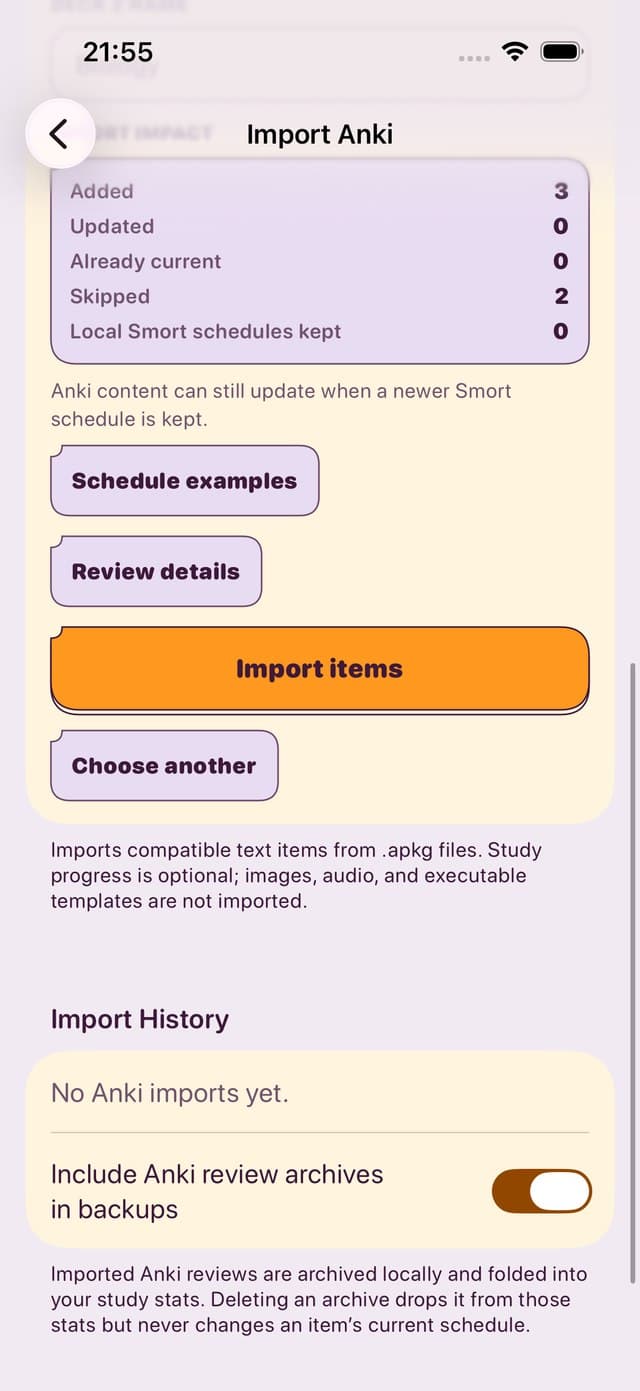
- Open the importer. In Smort, go to Settings, Import & Export, Import Anki, then Choose Anki file. You can also open the iPhone Share sheet for the .apkg and choose Smort.
- Review before importing. Check compatible and skipped counts, media omissions, deck names, item language, the calculated changes, and schedule examples. Choose Bring my study progress or Start these items fresh.
- Tap Import items. Smort processes the source on the device and never modifies the .apkg file.
Analyzer is not a converter. The browser Anki Deck Analyzer can inspect .apkg and .colpkg files up to 400 MB without uploading them. It does not turn a .colpkg into a Smort-compatible file. Export an individual .apkg from Anki desktop for Smort.
What each route keeps
AnkiMobile continues the Anki workflow. Smort translates supported content into a different study system, so its import is intentionally narrower.
| Route | Input | What it keeps | Important limit |
|---|---|---|---|
| AnkiMobile sync | AnkiWeb account | Native collection, scheduling, templates, media, and desktop continuity. | The first one-way direction must match the copy you intend to keep. |
| AnkiMobile deck import | Individual .apkg | Deck contents plus the scheduling and media actually included in the package. | A deck package adds content. It is not a full collection transfer. |
| AnkiMobile collection transfer | .colpkg or old collection.apkg | The complete exported collection with scheduling. | Importing replaces the current AnkiMobile collection. |
| Smort import | Individual .apkg | Supported text cards, including supported static and cloze templates. It can bring supported progress or start fresh. | Images, audio, media-only cards, unsafe templates, oversized text, and some identity conflicts are omitted or skipped. |
| Browser Analyzer | .apkg or .colpkg, up to 400 MB | Reads collection statistics, review history, and problem-card signals locally. | Inspection only. It neither imports nor converts the package. |
Supported progress is not exact Anki continuity. When an imported history archive exceeds Smort's limit, Smort can keep current due states without retaining the historical review rows. Suspended cards stay paused. Buried cards are unburied.
Verify the import before relying on it
Keep the original until these checks pass. A successful import message does not prove that every custom card behaves the same way.
- Compare counts and deck names
- Check the total and any child decks against the source before studying.
- Sample every important card type
- Open basic, reversed, cloze, custom-template, and media-heavy examples.
- Inspect mature cards
- Confirm a few long-studied cards have the due state you expected.
- Run one short review
- Make sure prompts, answers, grading, sound, images, and new due dates make sense.
No history or progress appears
The .apkg was probably exported without scheduling information. Re-export with it enabled if you want a compatible importer to read that data.
Images or audio are missing
In AnkiMobile, confirm media was included and let sync finish. In Smort, media omission is expected because the importer creates text study items.
Smort skips some cards
Open Review details. Common reasons include media-only content, an unsupported or unsafe template, oversized text, or a conflicting Anki item identity.
Smort rejects the file
Re-export one deck as .apkg from the latest Anki desktop app. A .colpkg, collection.apkg, damaged database, or oversized collection entry cannot be imported.
Common questions
- How do I add an Anki deck to my iPhone?
- Get the deck's .apkg file onto the iPhone, tap it, and choose Open in Anki, or use Share and pick AnkiMobile. If the deck is already in Anki desktop, sync it through AnkiWeb instead. To study it in Smort, open the .apkg from Smort's Import Anki screen.
- How do I download shared Anki decks on iPhone?
- In AnkiMobile, tap Add/Export, then Shared Deck List. AnkiWeb opens in Safari. Find a deck, tap Download, open Safari's Downloads list, and tap the file to open it in AnkiMobile.
- Can I import an Anki deck on iPhone without a computer?
- Yes, when the .apkg is already on the iPhone, for example a shared deck from AnkiWeb or a file someone sent you. You need Anki desktop to export a deck from your own collection, or AnkiWeb sync to move a whole collection.
- Will my review progress come with the deck?
- Only if the .apkg was exported with scheduling information. AnkiMobile reads the scheduling in the package. Smort lets you bring supported study progress or start the items fresh.
- Why won't my Anki file import?
- Check the file type. A .colpkg or an old collection.apkg is a whole collection: AnkiMobile replaces your collection with it, and Smort rejects it. Export a single deck as .apkg from the latest Anki desktop app.
Sources and related tools
Anki sources: The normal iPhone flows come from the official shared-deck, cloud-sync, and collection-transferdocumentation. File behavior comes from the official Anki export manual.
Smort sources: Import claims were checked against the current app importer and its tests on September 4, 2026. Product availability is shown from the same destination setting used by the download button: Private beta.
Scope: This guide covers moving an existing Anki deck to an iPhone. It does not claim that Smort reproduces every Anki feature.